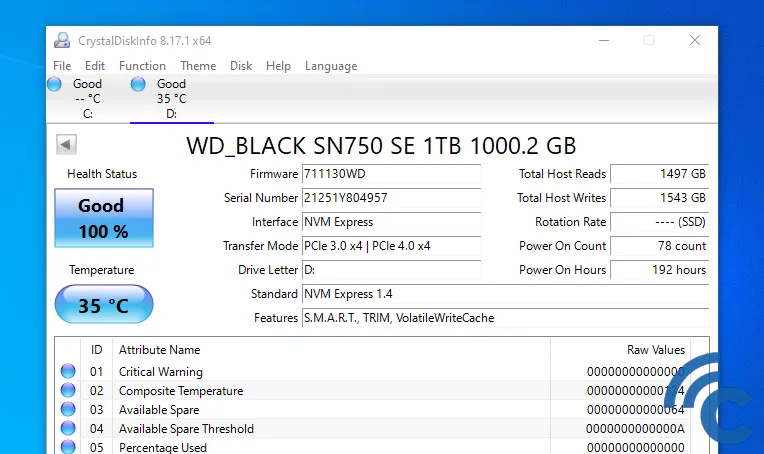
Here’s an easy way to check the health of your hard drive, one you can do yourself without going to a service center. As is known, a hard drive is a device on a laptop or PC that functions to permanently store data, including the operating system (OS) and the user’s personal data.
Therefore, users must know how to regularly check the health of their hard drive. This is because hard drives play such a crucial role.
Furthermore, checking the health of your hard drive also helps determine the remaining capacity, performance, and health of your hard drive. So, how do you easily and independently check the health of your hard drive? For more information, see this article.
How to Check Hard Disk Health
- Check hard disk using Windows CHKDSK
The first way to check the health of your hard drive on a laptop or PC, especially those running Windows, is to use the Windows CHKDSK tool.
The Windows CHKDSK tool works by finding system errors or bad sectors on the hard drive used on your laptop or PC.
To use the Windows CHKDSK tool, follow these steps:
● Right-click the hard drive you want to check and then click Properties.
● Select the tools menu on the tab that appears then select the checking options available in the dialog box.
● Click Check or Check Now to perform the check and repair. - Check hard disk using WMIC command
Additionally, you can check your hard drive’s health using the WMIC command. WMIC is a command-line interface that allows laptop users to perform various administrative tasks, including checking the hard drive.
To use the WMIC command, follow these steps:
● Press Windows +R then type “CMD” and OK to open the Windows Command Prompt.
● Type WMIC in the field provided, then type “diskdrive get status” and press Enter again. The hard drive status will then be displayed on the laptop screen. - Third party
Another way to check the hard drive and SSD on your laptop or PC is to use a third-party application.
These tools usually display more comprehensive information about the status of the hard drive and SSD on your laptop or PC.
What’s more, these third-party applications or tools can be used to check the condition of various brands of hard drives and SSDs.
To perform their tasks and retrieve data, these applications or tools utilize the S.M.A.R.T. feature and provide more detailed information about the hard drive and SSD.
Some applications or tools that can be used to check the hard drive and SSD on your laptop or PC include Hard Disk Sentinel, HDDScan, CrystalDiskInfo, and many more.
CONCLUSION
The above review discusses how to check the health of a hard drive, a device found on laptops and PCs. This is done to determine the remaining capacity, performance, and health of the hard drive. However, many users don’t know how to check the health of a hard drive, which is actually very easy to do. Consequently, they never check the hard drive and SSD on their laptop or PC. Therefore, this article will provide a method for easily checking the condition of the hard drive on a laptop or PC.